Ekman Cluster Specifications
Knowing the specs of the cluster is important, as it allows you to carefully balance your computation and to choose the right partition (or “queue”) for the calculation you have to perform.
Specs Sheet
Name: Ekman
Operating System: = 3.10.0-1160.el7.x86_64 GNU/Linux
Scheduler: SLURM 19.05.3
Nodes:
1 x Login Node (
sail.msk.ru -p 2240) configured as:Model: ASUS RS700-E10-RS4U
CPU: * 56 x Intel(R) Xeon(R) Gold 6348 CPU @ 2.60GHz, 28 cores per socket × 2 sockets * Total: 112 logical CPUs (threads) as Hyper-Threading is enbaled on the login node.
RAM: 256 GiB
Swap: 8 GiB
Disk: 2 × 894 GiB SSDs in RAID1
~100 GiB for /home
~789 GiB for root /
34 x Compute Nodes in total: see the Partition section.
1 x GPU node:
CPU: 176 x Intel(R) Xeon(R) Gold 6348 CPU @ 2.60GHz * Each node has 2 sockets × 44 cores × 2 threads per core (Hyper-Threading enabled), totaling 176 logical CPUs.
GPU: * 2 × NVIDIA H100 (14592 CUDA cores each, 80 GiB HBM2e memory per card) * Total: 29184 CUDA cores
Disk:
Filesystem: Lustre
Storage
/storage/ekmanLarge-volume storage based on SAS drives. This is the default storage for general-purpose data and compute tasks./storage/scratchFast SSD-based storage intended for temporary high-performance tasks. Files older than 3 months are automatically deleted. Recommended for jobs running on the rack1 partition to benefit from local high-speed interconnects./storage/kubrick,/storage/tartar,/storage/thalassaNetwork file systems (NFS). These storages are not suitable for direct compute jobs, but they are available for storing or accessing large datasets.!!! Storage Policy !!!Each user is automatically provided with a dedicated directory under every listed storage path (e.g. /storage/ekman/username, /storage/scratch/username, etc.). All work must be done inside your personal directory within these storage locations.
(!!!) Do not run jobs or store data in your $HOME directory — it is not designed for
I/O-heavyoperations or scratch data.
Partitions
The partitions (queues) are then organized as follows; note that you can get detailed information about a partition via the command scontrol show Partition=<name>.
Partition |
Nodes |
Cores per Node |
Max Time |
Max Memory (GB) |
Processor |
Max Threads |
|---|---|---|---|---|---|---|
rack1 |
14 |
76 |
30-00:00:00 |
258 |
Platinum |
1064 |
broadwellr2 |
15 |
32 |
30-00:00:00 |
257 |
Xeon E5 |
480 |
r2c2 |
14 |
48 |
30-00:00:00 |
192 |
Xeon Gold |
672 |
knl |
2 |
72 |
30-00:00:00 |
193 |
Phi 7290 |
144 |
gpu |
1 |
2×NVIDIA H100 |
30-00:00:00 |
80 |
NVIDIA Gen5 |
29184 |
Note
Max Threadsincludes logical (Hyper-Threaded) CPUs when enabled.GPU “cores and threads” reflect CUDA cores — not traditional CPU threads.
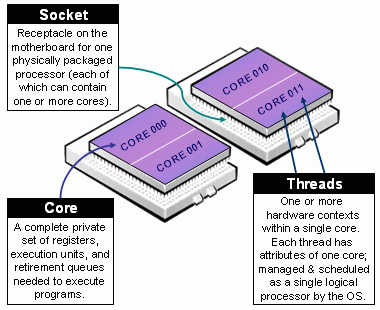
Definitions of Socket, Core, & Thread from SLURM’s documentation.